Complex sections
AdSec makes it straightforward to model complex section geometries, including sections with a large number of points or irregular shapes, such as stability cores. Complex sections can be created directly from point coordinates or by importing perimeter geometry from a DXF file.
Modelling complex geometries using coordinates
Complex section profiles can be created by defining a perimeter geometry using a list of point coordinates. This approach is well suited to irregular shapes and sections with many vertices. To create a complex section profile:
- Create a new section by selecting Empty section.
- In the Definition view, click the pencil icon next to the component's Profile field.
- Set the profile type to Geometric.
- Select Perimeter as the geometry type.
- Paste the list of point coordinates into the input field.
- Click Apply. You can also create complex void geometries using the same approach by first clicking + Add void.
Coordinate format
Point coordinates must be provided in the expected format.
Details of the required format are available via the information (i) icon next to the Paste icon. This describes how coordinates should be ordered and separated.
Once pasted, the section profile is created directly from the supplied coordinates.
Importing geometry from a DXF file
Complex section profiles can also be created by importing perimeter geometry from a DXF file. This is useful when replicating irregular section shapes that have already been defined in a CAD application.
DXF import requirements
The DXF file must contain a single closed polyline defining the section outline. The outer boundary must be placed on either the 0 or OUTER layer.
The following requirements and behaviours apply:
- DXF versions older than 2000, such as R12, are not supported.
- For best compatibility, export the file using the latest DXF version available in your CAD application.
- Points are imported in the same order as they appear in the polyline.
- Importing a DXF file replaces the current points in the geometry table.
- The section geometry must be located in the XY plane.
- Curved polyline segments are not supported. Convert arcs to straight line segments before exporting the DXF.
Importing a section profile
To import a section profile:
- Create a new section by selecting Empty section under the Sections module.
- Open the empty section.
- In the Definition view, click the pencil icon next to the component's Profile field.
- Set the profile type to Geometric.
- Select Perimeter as the geometry type.
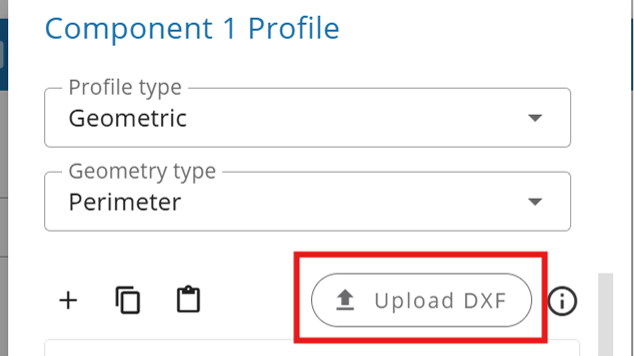
- Click Upload DXF.
- Select the DXF file that you want to upload.
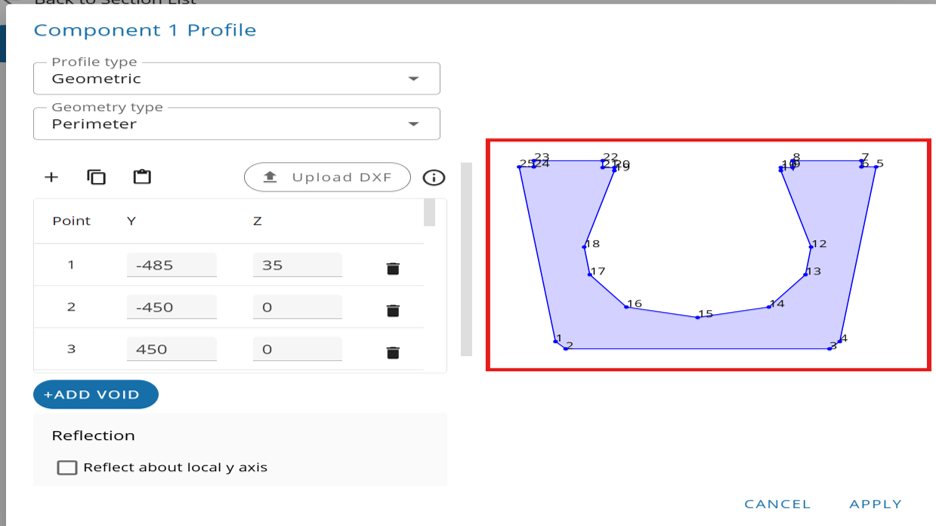
- After a successful upload, review the section profile displayed in the geometry editor.
- Edit the imported data points if required.
- Click Apply. AdSec also allows voids to be added to the imported section profile if required.
Example
For example, consider a situation where you are modelling a complex section profile that has already been defined in a CAD application. To create the same section in AdSec without manually entering every coordinate, you would import the perimeter geometry from a DXF file:
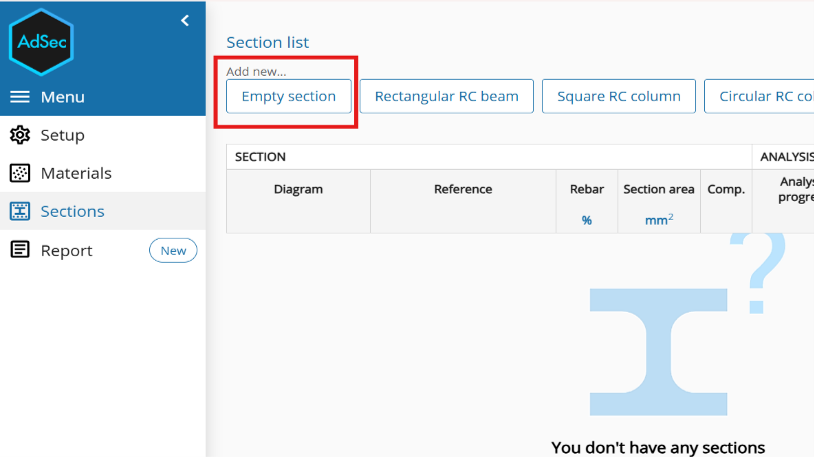
1. Create a new section by selecting empty sections.
Under the Sections module, select Empty section.
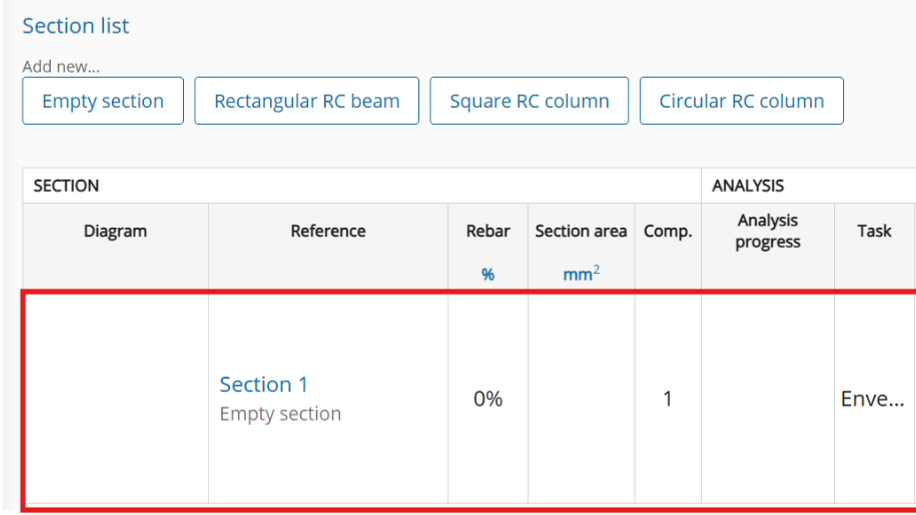
2. Open the empty section
Select the newly created empty section to open its definition.
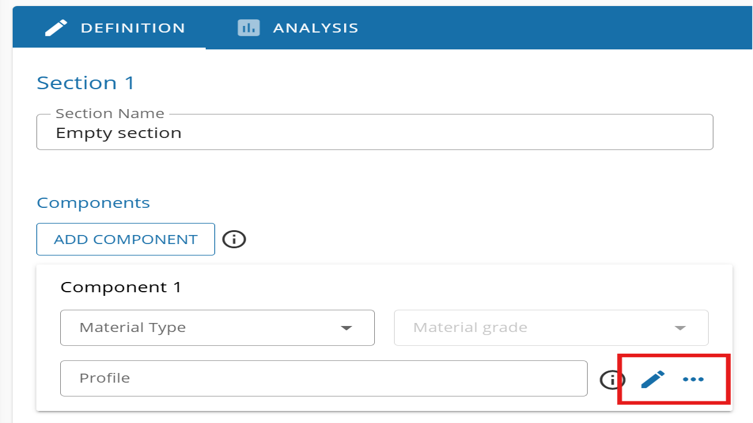
3. Edit the component profile
In the Definition view, click the pencil icon next to the component's Profile field.
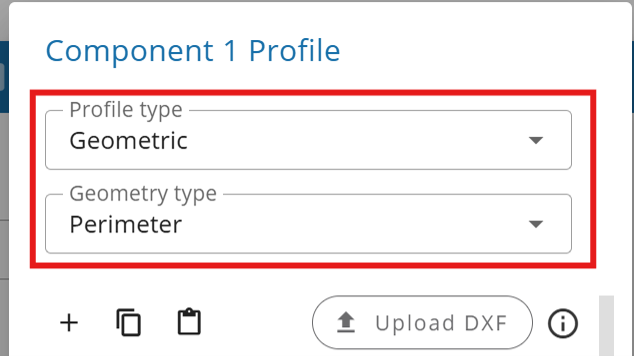
4. Select the profile and geometry types
Set the profile type to Geometric and select Perimeter as the geometry type.
5. Upload the DXF file
Click Upload DXF and select the required DXF file.
6. Review the imported profile
After the file has been uploaded successfully, the section profile is displayed in the geometry editor. Review the imported geometry and edit the point coordinates if required.
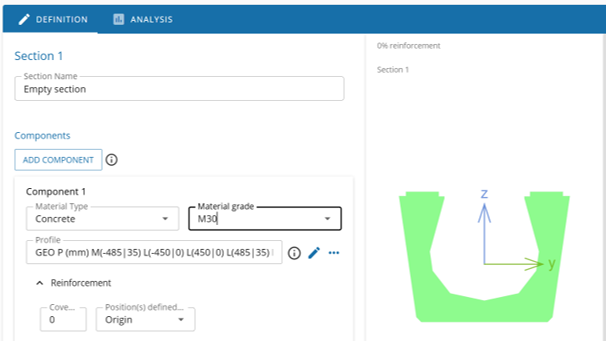
7. Apply the profile
Click Apply to save the imported profile. The section can then be reviewed and edited from the standard Definition and Analysis views.
DXF layer requirements
AdSec uses DXF layers to determine how imported entities should be interpreted. Use the following supported layers:
OUTERfor the section perimeterHOLESfor section voids The outer boundary must be defined using a closedLWPOLYLINE. Entities on unknown layers are skipped during import.
Working with complex sections
After defining or importing the section geometry, you can continue to build up the section in the same way as any other section:
- Assign materials from the Materials tab.
- Define reinforcement layouts.
- Add voids.
- Add additional components to create multi-component sections.
- Edit imported or pasted geometry points where required. The resulting section can then be analysed and reviewed using the standard analysis views.
When to use these approaches
Coordinate-based geometry
Defining geometry using coordinates is particularly useful when:
- Working with irregular or bespoke section shapes.
- Modelling sections with a large number of vertices.
- Translating geometry from external sources where point coordinates are available.
- Creating geometry directly without preparing an external file.
DXF import
Importing geometry from a DXF file is particularly useful when:
- The section profile already exists in a CAD application.
- Recreating the geometry manually would be inefficient.
- The section contains an irregular outline with many vertices.
- Voids or reinforcement positions are already represented using supported DXF entities and layers. These approaches provide flexible and efficient ways to model complex sections directly within AdSec. ``